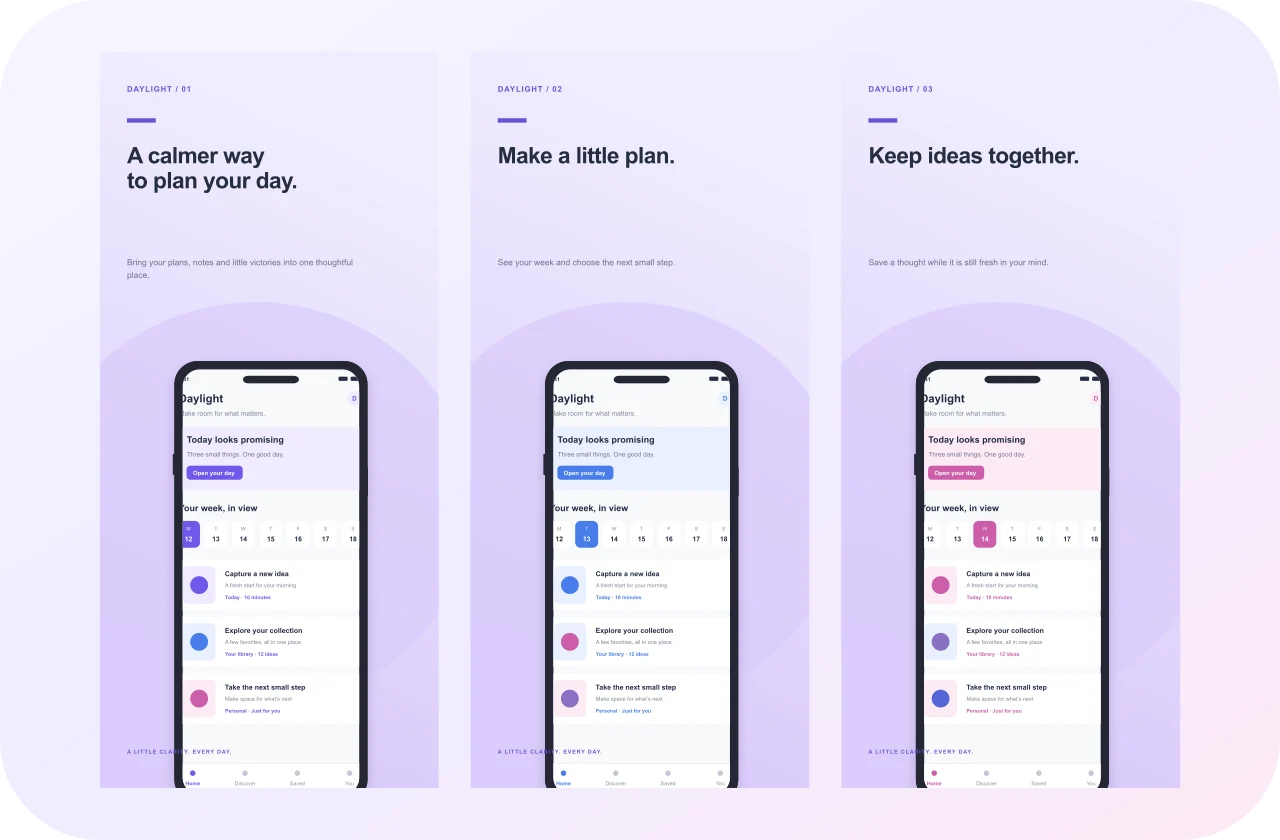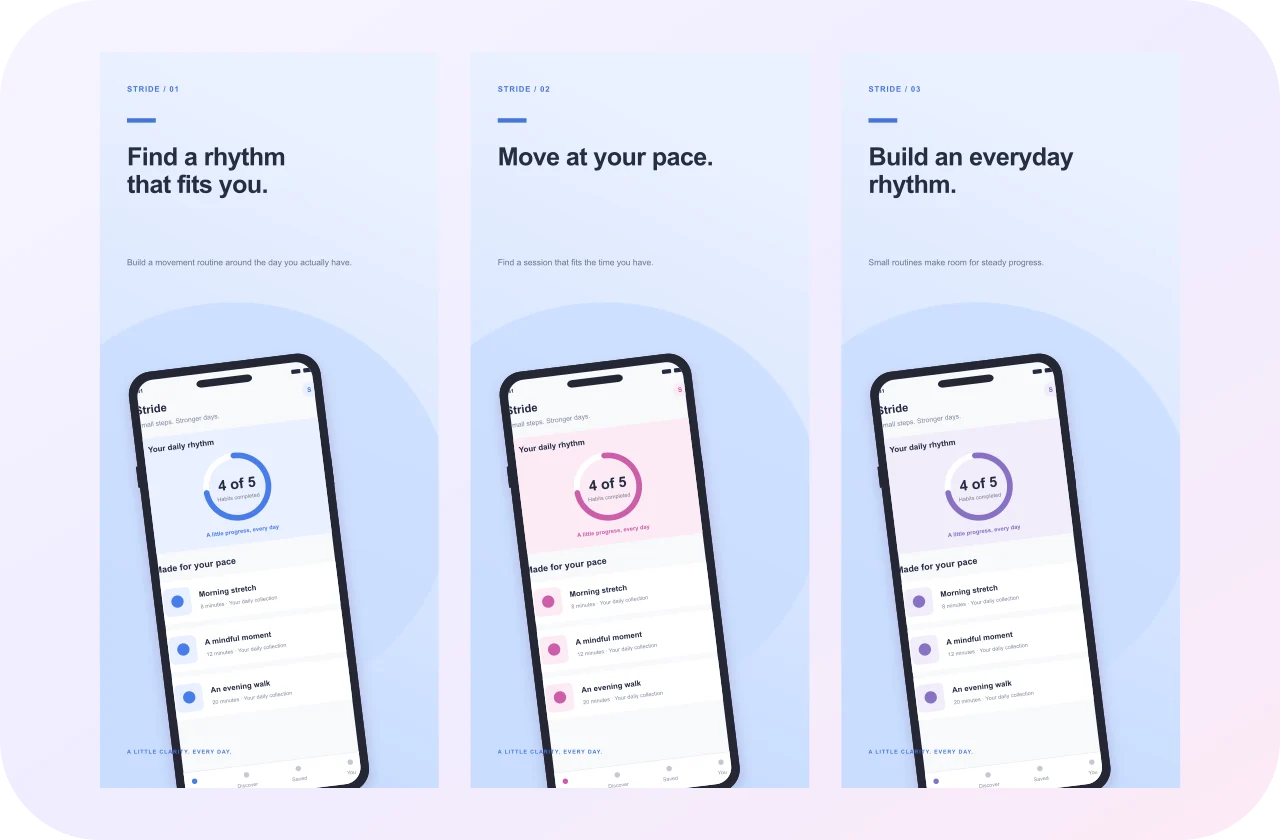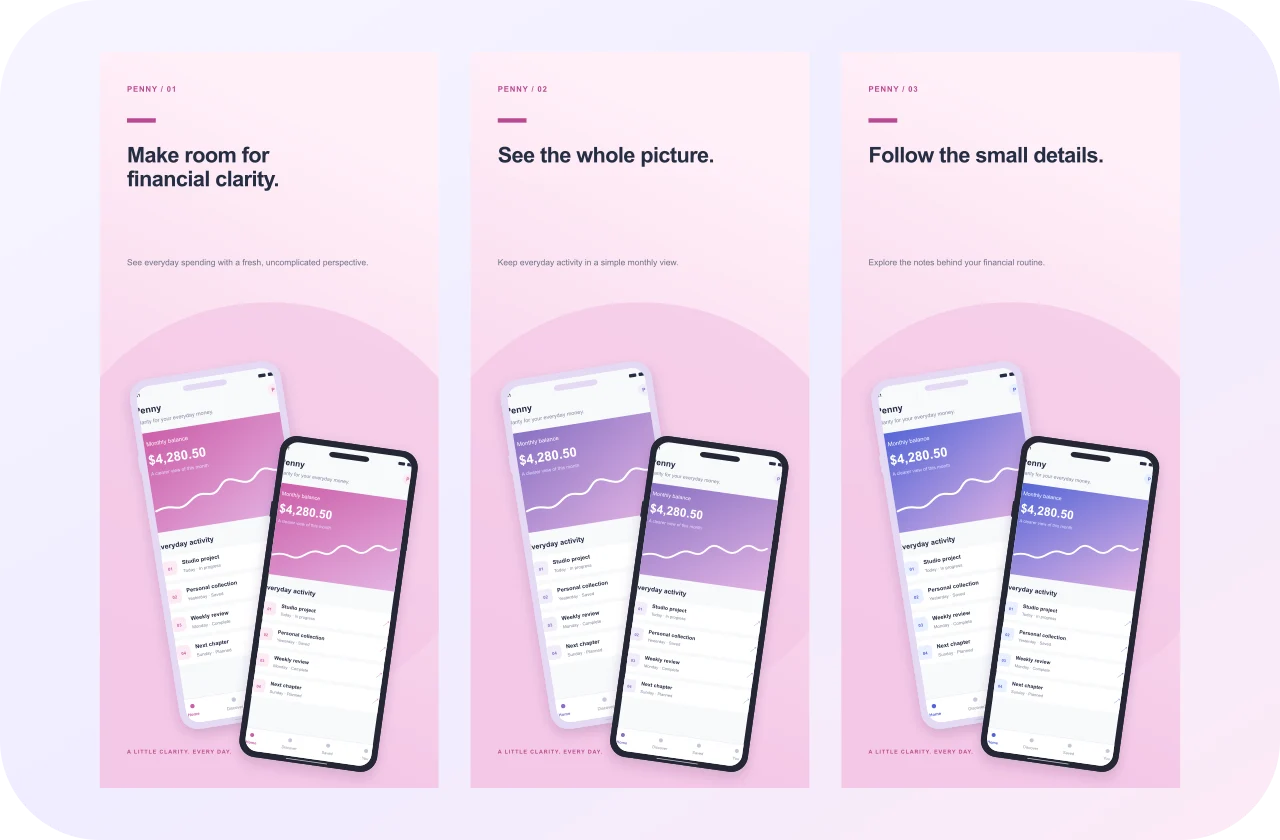
Edit app screenshots online with a layered workspace
An online app screenshot editor gives you control over the composition around your product captures. Instead of placing captions permanently inside a flattened image, work with editable text, screenshots, backgrounds and device frames. This makes it easier to update a product screen, change a headline or adapt the same idea to another output size without recreating every element.
AppScreenshot.online opens in the browser without requiring an account. Start with a blank design or choose an original template, then replace the fictional content with your own app material. The editing workflow is organized around pages and layers, so you can refine individual panels while reviewing how they work together as a complete screenshot sequence.
Choose the canvas before refining the layout
This entry point starts with a 1206 × 2622 portrait preset. Use Sizes to choose another supported output or enter custom dimensions for your intended placement. Decide whether you need phone, tablet or desktop artwork before adding many layers. A correct starting canvas makes caption spacing and screenshot scale easier to judge than resizing an almost-finished design later.
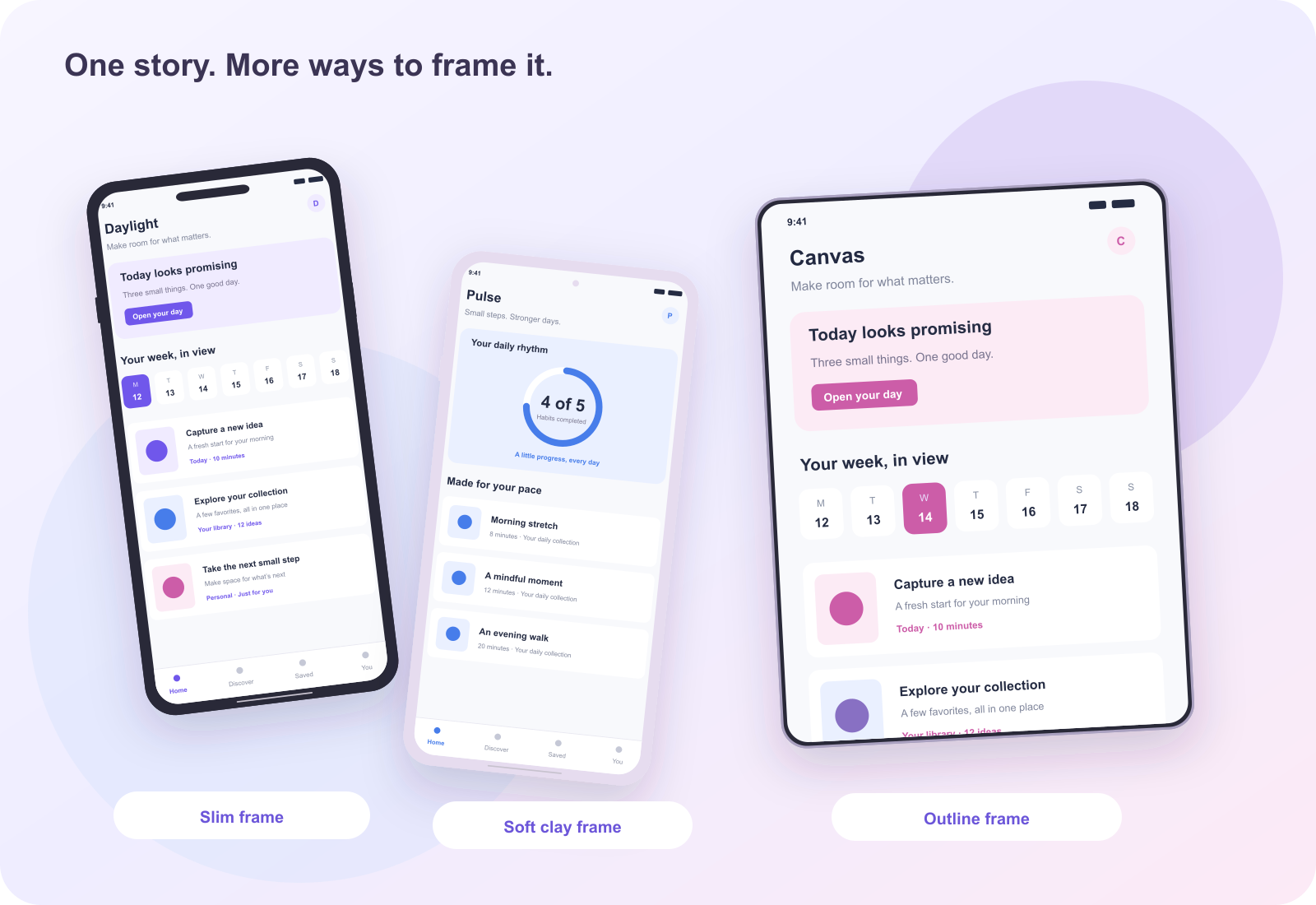
Output dimensions and decorative devices are separate settings. A laptop illustration does not turn a portrait file into a desktop screenshot, and a different phone frame does not automatically select an App Store display class. Confirm the destination's requirements, select the appropriate canvas and then arrange the elements inside it. Review the complete sequence after any substantial size change.
Move, resize and rotate editable elements
Select an image, device, shape or text layer to adjust its position. Drag to arrange it visually, or use the numeric fields when you need precise coordinates and dimensions. Snapping helps align objects with canvas guides and nearby layers. Turn snapping off for unrestricted movement when fine placement matters more than matching an existing edge or center.
Resize and rotate selected elements while checking the image's clarity and the surrounding spacing. The editor uses a responsive movement preview and commits the final change when the gesture ends. Undo and redo let you compare a placement with its previous state. Keep the screenshot readable at the intended display size, even when a dramatic rotation looks appealing at editing zoom.
Keep text and screenshot replacement independently editable
Change headline wording, font settings, alignment and color through the text controls. Double-click canvas text when you want to edit its wording directly. Keep each caption focused on the task visible in the screenshot. Short phrases are easier to arrange and review, while longer supporting text needs enough space and contrast to remain readable in a smaller preview.
Select a device and use Replace screenshot to update the interface inside its frame. Import PNG, JPEG or WebP files and review the crop after replacement. You can also add ordinary image layers when a frame is unnecessary. Keeping these elements separate makes future updates simpler: a revised screen does not require you to rebuild the surrounding title, background and device placement.
Use layers and backgrounds to clarify the hierarchy
The layer controls help you select, reorder, hide or lock elements as the design becomes more complex. Keep an important screenshot in front of decorative objects and lock items you do not want to move accidentally. Align multiple selected layers when repeated margins should match. Use these controls to simplify editing rather than adding unnecessary objects to the composition.
Choose a solid, gradient, pattern or image background that supports the interface. A detailed capture often benefits from a quieter surface, while a simple screen can tolerate a stronger accent. Check contrast around captions and avoid relying on a shadow to make unclear text readable. Review the design at a smaller size before deciding that every added effect improves the result.
Manage pages and shared screenshot compositions
Use the page controls to add, duplicate, reorder or remove panels. Give each screenshot a clear role in the sequence: an introduction, a useful interaction or an outcome. All screens view helps you compare visual rhythm across the set, while Focus screen gives the active panel more space for detailed review. Check both views before completing a shared composition.
A device can span adjacent panels as one editable object, and a panoramic background can connect the sequence. The exports still contain separate screenshot files. Keep essential captions understandable inside each panel and inspect the boundaries between neighboring images. For language versions, copy the relevant pages, edit the translated content manually and review alignment and line breaks independently.
Export screenshots without losing the editable project
Download the active panel as opaque PNG or JPEG, or export all panels as separately numbered images in a ZIP. Open the downloaded files to check dimensions, crop, spelling and order. A preview inside the editor is useful for composition, but the file you deliver should receive its own review. Inspect the destination's uploaded preview when preparing store artwork.
Download a project JSON backup as well. It preserves the editable document and embedded image assets, while PNG and JPEG files are finished images. The backup is the practical choice for moving work to another browser or returning to a design after local site data has been cleared. Keep it alongside the exports so the source of an approved image set remains available.
Understand browser-local saving and revision limits
The editor processes screenshots and saves projects locally using this browser's storage. It does not provide a cloud project library or account-based synchronization. A local design link will not transfer the document to another device. Private browsing, storage limits or clearing site data can affect persistence, so use downloaded backups for work you want to retain outside the current browser.
Treat the project as an editable source for the next product release. Replace outdated captures, revise captions and check every panel after changing a major layout setting. The workflow includes useful layer and export controls, but it is not a full 3D modeling suite or an automatic translation service. Choose the tool-specific guide that matches your destination when preparing final delivery files.
Online app screenshot editor FAQs
Can I reopen the design on another computer?
Download the project JSON backup, then import it in the browser on the other computer. The local URL alone is not a transferable project. Keep the original backup until you have confirmed that the imported design, images and editable layers are available in the new browser.
Can I edit a finished screenshot without its project file?
You can import a finished PNG, JPEG or WebP as an image layer, but its embedded words and graphics do not become separate editable layers automatically. Use the original project backup when you need to revise individual captions, frames or backgrounds, then export a new finished image.